The Scaffold Software

PAYMENT CLAIMS & INVOICING

The extra work.
The inspections.
The hire you’re owed.

Bring variations, signed inspections and extra hire into your billing review. See what has already been claimed, what you are claiming now and what still needs attention—on the actual claim screen.

01 / SEE WHAT STILL NEEDS CLAIMING

Extra work done.
Still waiting to be claimed.

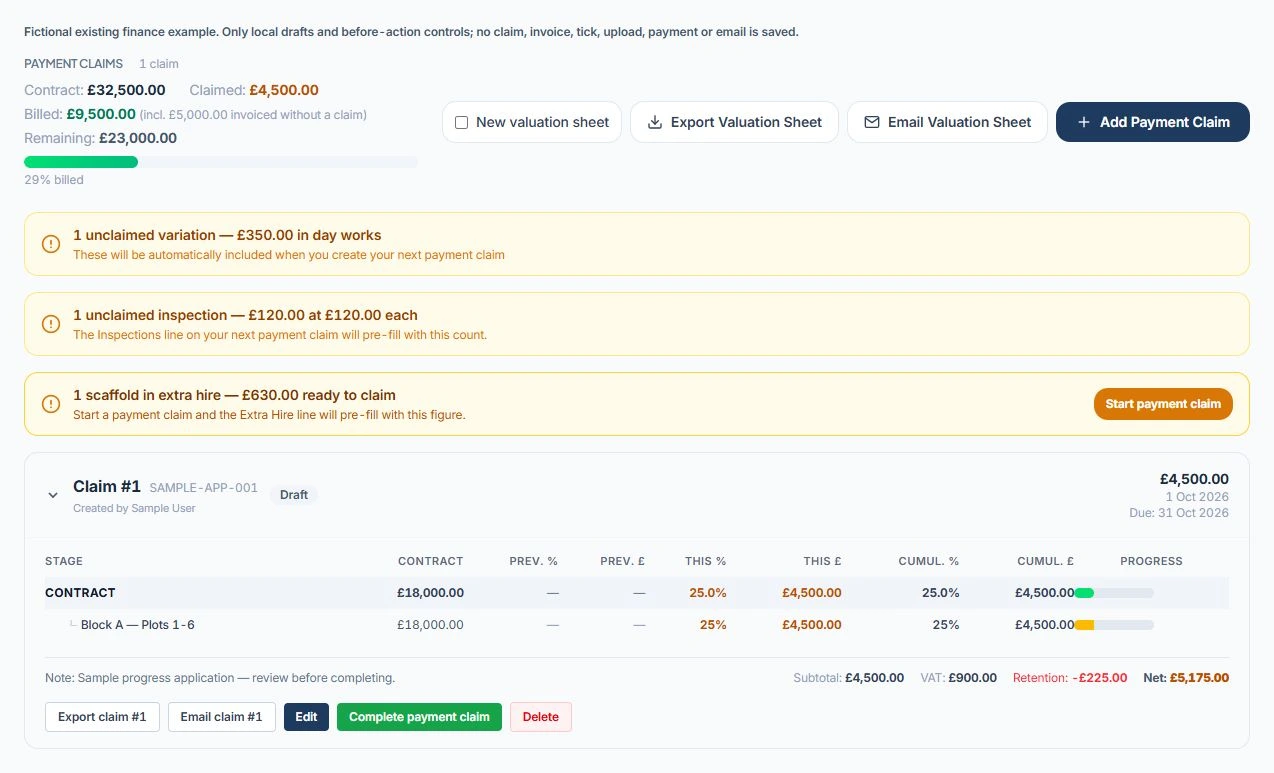
Before you start your next payment claim, see the variation orders and signed inspections that are still unclaimed. Clear banners put them in front of the office alongside extra hire ready to claim.

See the work reach the invoice.

Ask us to follow a variation, an inspection and extra hire through your Teams demo.

FLAGGED BEFORE THE NEXT CLAIM

£350Unclaimed variation+£120Unclaimed inspection=£470Work still to claim, plus extra hire

Actual payment-claims screen with fictional demonstration records. The £470 is the two unclaimed work alerts combined, not the existing claim total. Extra hire is flagged separately.

02 / CLOSE THE GAPS BETWEEN SITE AND OFFICE

Three things that
need to reach the claim.

VARIATIONS

Keep additional work in view.

Unclaimed variation orders can be surfaced for the next claim. Values can come from a fixed price or a day-work calculation, and claimed records are linked to the claim.

The review: check the variation’s approval, status and value. Variations marked as billed externally are kept out of this route.

See the site-to-office workflow
INSPECTIONS

Count the visits that are ready.

Signed inspection reports that have not already been attached to a claim can feed the inspection quantity. The claim can prefill quantity × the configured inspection rate.

The review: unsigned drafts are excluded. Check the quantity and rate; a missing-rate warning prompts you to set the inspection rate before claiming.

See inspection software
EXTRA HIRE

See the unbilled period.

Scaffold dates and rates feed the extra-hire calculation, accounting for amounts already claimed. The claim screen distinguishes the current period from accumulated unbilled hire.

The review: check dates, rates and amounts already claimed. The per-scaffold breakdown records the amount included in this claim.

See hire tracking

Available selections, defaults and automatic prefills depend on your plan and organisation setup. We’ll show your exact workflow in the demo.

03 / FOLLOW THROUGH TO THE INVOICE

The detail behind
the amount due.

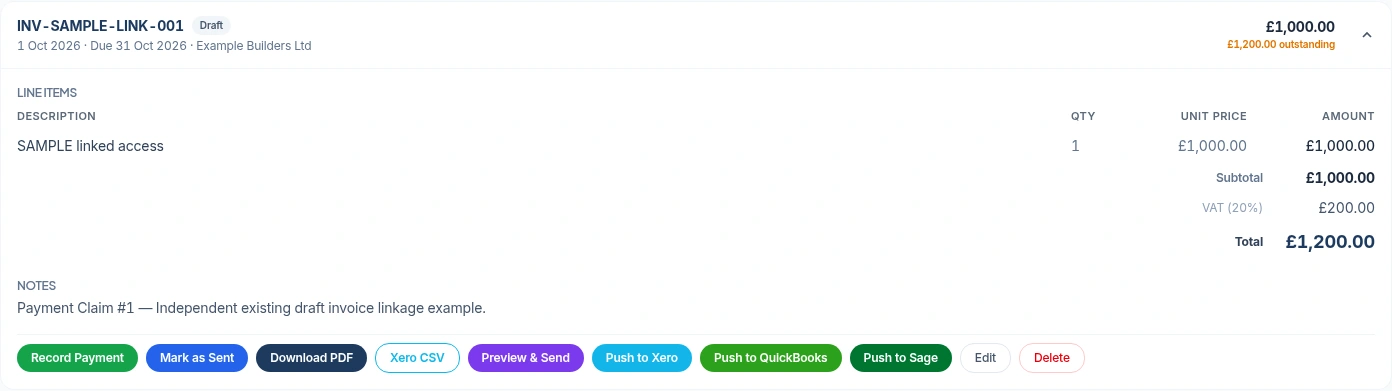
Claims can become draft invoices. Review the invoice lines and totals, then use the PDF, preview/send and accounting actions available for your setup. Creating a draft is not the same as sending it.

Expanded draft invoice showing line item, VAT, total and accounting actions
Real product capture · Separate sample draft invoice, not the output of the claim aboveView full size

Check the invoice.

See the description, quantity, unit price and totals. Keep the invoice record with the project and claim history.

Choose the next action.

Download or preview the invoice, send where supported, or push to the connected accounting provider. Availability depends on plan and configuration.

Follow the status.

Keep track of outstanding amounts and payments. Review connection or delivery errors before treating an invoice as successfully transferred or sent.

04 / CONNECT THE ACCOUNTS

Your project record.
Your accounting workflow.

Accounting integrations are available on Pro-level plans and above. Connect the correct accounting organisation and confirm the workflow with our team.

Xero

Invoice transfer: push invoices to Xero as drafts.

Follow-up: synchronise payment and invoice status information.

Requires an authorised Xero connection. Review the draft and the transfer status.

QuickBooks
Online

Invoice transfer: push or update invoices in QuickBooks Online.

Follow-up: synchronise payment and invoice status information.

Requires an authorised QuickBooks Online connection.

Sage Business
Cloud Accounting

Invoice transfer: push invoices to the connected Sage Accounting organisation.

Follow-up: synchronise payments.

Organisation enablement is required; confirm availability and invoice sending with our team. This is not a Sage 50 integration.

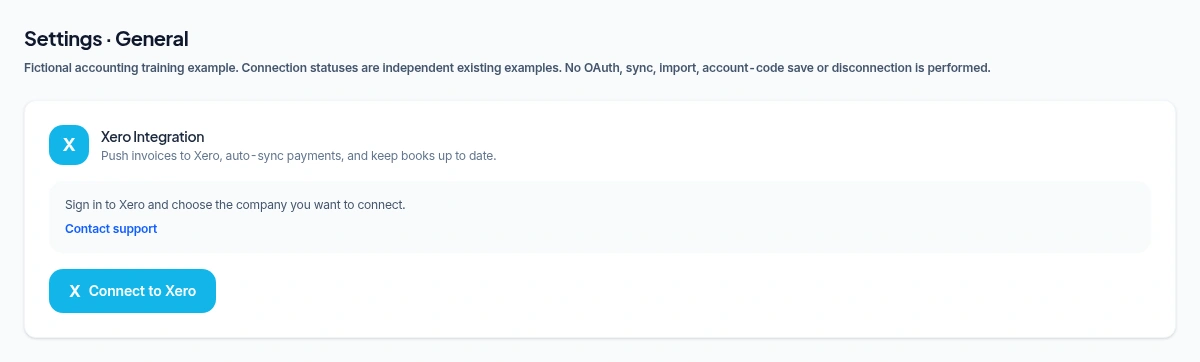
Xero connection setup in The Scaffold Software settings
Real product training capture · Connection setup, not proof of a completed invoice transferView full size

Compare plans

BEFORE YOUR NEXT CLAIM

The billing questions
worth asking.

Which inspections appear as unclaimed?

Signed inspection reports that have not already been attached to a claim can feed the inspection quantity. Unsigned drafts are excluded. Check the configured inspection rate and quantity before saving; a missing rate triggers a warning.

What if a variation has already been billed elsewhere?

Variation orders marked as billed externally are excluded from this unclaimed-work route. Keep that record up to date and review previous claims before billing. Check the project’s billing record alongside your accounting system before submitting the next claim.

How do we check extra hire before claiming?

Review the scaffold dates, rates and amounts already claimed. The claim screen distinguishes the current period from accumulated unbilled hire, with a per-scaffold breakdown. Available defaults and selections depend on your organisation setup.

Can we keep our existing accounting software?

Integrations cover Xero, QuickBooks Online and Sage Business Cloud Accounting on Pro-level plans and above. An authorised connection to the correct accounting organisation is required. Sage also requires organisation enablement; confirm availability and the sending workflow with our team. See what each integration supports.

MAKE THE DEMO SPECIFIC

Ask us to follow
the extra work.

In your Teams demo, ask us to take a variation, a signed inspection and an extra-hire period into a claim. Then review the invoice record and the accounting workflow for your business.

That shows where information is reused, what the office still checks and which steps your chosen plan supports.

SEE IT ON ONE JOB

See claims and invoicing
on a Teams demo.

Choose a time for a one-hour Teams walkthrough, or request a trial on the plan that fits your firm.

7-day management trial · No card needed · Our team sets up your access

Product screen